
Lets an assistant edit and run cells in a live Jupyter notebook and read the results.
- Needs your setup first
- ★ 1.3K GitHub stars
- 12.2K downloads a week
- Last commit 24 Oct 2026
What is Jupyter MCP Server?
Jupyter MCP Server is Datalayer's open source server that lets an assistant read, write and run cells in a live JupyterLab notebook, with outputs and images coming back to the model.
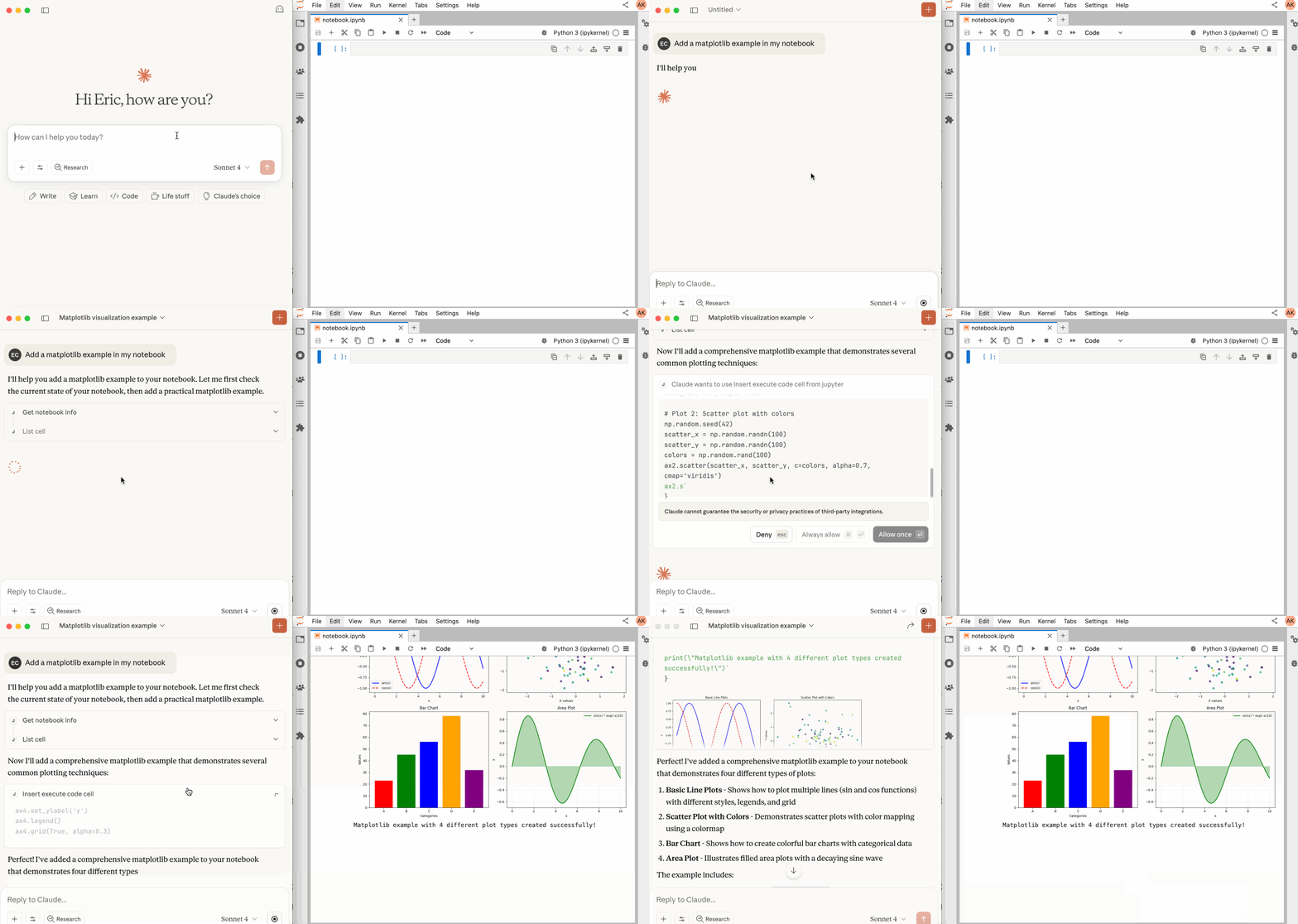
Datalayer built this server to work on a notebook while it is open in JupyterLab. The model can list and open notebooks, read cells, insert, edit, move and delete them, run a cell or a snippet of code on the kernel, and see the output, images and plots included. Because it goes through Jupyter’s real-time collaboration layer, you see each change in your browser as it happens.
It works with any Jupyter server, local or JupyterHub. Running code is the point of it, so it can do anything the kernel can do on that machine. Point it at a server and a token you control rather than a shared one.
- Made by
- Datalayer (datalayer/jupyter-mcp-server)
- Licence
- BSD
- Latest version
- 2.2.4 (11 Oct 2026)
- PyPI package
- jupyter-mcp-server
- GitHub stars
- 1.3K
- Downloads
- 12.2K a week
- Last commit
- 24 Oct 2026
- Tools
- 18
- Runs on
- Your computer
- Setup checked
- 27 Oct 2026
- Page updated
- 27 Oct 2026
Our check: It needs something our Linux test machine does not have (an account, a desktop app, a Mac or a running service), so on 27 Oct 2026 we read its tools from the source code instead of running this config.
MCP Shelf take
Jupyter needs something our Linux test machine does not have (an account, an app or a service), so on 27 Oct 2026 we read its source and counted 18 tools. 5 of the 18 only read; the other 13 can change things. It sits 19th of 21 in its category on our shelf by GitHub stars (1.3K, with 12.2K downloads a week).
What can Jupyter MCP Server read and change?
It can read
- Notebooks and files on the Jupyter server
- Cell outputs, including images
It can change
- Cells in your notebooks
- Anything the kernel can reach when the model runs code: files, data and network
Safer setup: Run Jupyter in a project folder or container you are happy for the model to change, and restart the kernel if something runs away.
What's in the pod
What tools does Jupyter MCP Server have?
We found 18 tools in its source code on 27 Oct 2026. 5 only read. The rest can change things, so keep your app's "ask before each tool call" setting on for them.
How we tested it: Tool list read from the source of jupyter-mcp-server (commit d95c405). The server waits for a running Jupyter server, which our sandbox does not have. Code sandbox tools and JupyterLab command tools come on top when their extensions are installed.
Runs commands3 tools · Can start programs or run code.
| Tool | What it is for |
|---|---|
execute_cell | Runs a cell and returns its outputs, with a time limit. |
execute_code | Runs code on the kernel without adding it to the notebook. |
insert_execute_code_cell | Inserts a code cell and runs it straight away. |
Changes things10 tools · Can create, edit, send or delete.
| Tool | What it is for |
|---|---|
clear_cell_output | Clears a code cell's outputs. |
connect_to_jupyter | Switches to another Jupyter server by URL and token. |
delete_cell | Deletes cells and returns what they contained. |
edit_cell_source | Finds and replaces text inside one cell. |
insert_cell | Inserts a code or Markdown cell at a position. |
move_cell | Moves a cell to another position. |
overwrite_cell_source | Replaces a cell's source and shows the diff. |
restart_notebook | Restarts a notebook's kernel. |
unuse_notebook | Releases a notebook. |
use_notebook | Opens or creates a notebook and makes it the one later cell tools work on. |
Only reads5 tools · Looks things up and changes nothing.
| Tool | What it is for |
|---|---|
list_files | Lists the files and folders on the Jupyter server. |
list_kernels | Lists running and available kernels. |
list_notebooks | Lists the notebooks opened in this session. |
read_cell | Reads one cell, with its outputs if wanted. |
read_notebook | Reads every cell's index, type, source and execution count, in brief or full form. |
Grouped and described by us. The README on GitHub lists the inputs each tool takes.
How do I install Jupyter MCP Server?
Install steps from the Jupyter MCP Server README
The project's own instructions, copied from its README on GitHub on 27 Oct 2026 under its BSD licence. They are the source of truth; the ready-made configs further down are built from them. The rest of the README is in the README tab.
🏁 Getting Started
For comprehensive setup instructions—including Streamable HTTP transport, running as a Jupyter Server extension and advanced configuration—check out our documentation. Or, get started quickly with JupyterLab and STDIO transport here below.
1. Set Up Your Environment
pip install jupyterlab jupyter-collaboration jupyter-mcp-tools ipykernel
To confirm your environment is correctly configured:
- Open a notebook in JupyterLab
- Type some content in any cell (code or markdown)
- Observe the tab indicator: you should see an "×" appear next to the notebook name, indicating unsaved changes
- Wait a few seconds—the "×" should automatically change to a "●" without manually saving
This automatic saving behavior confirms that the real-time collaboration features are working properly, which is essential for MCP server integration.
2. Start JupyterLab
# Start JupyterLab on port 8888, allowing access from any IP and setting a token
jupyter lab --port 8888 --IdentityProvider.token MY_TOKEN --ip 0.0.0.0
If you are running notebooks through JupyterHub instead of JupyterLab as above, refer to our JupyterHub setup guide.
3. Configure Your Preferred MCP Client
Next, configure your MCP client to connect to the server. We offer two primary methods—choose the one that best fits your needs:
- 📦 Using
uvx(Recommended for Quick Start): A lightweight and fast method usinguv. Ideal for local development and first-time users. - 🐳 Using
Docker(Recommended for Production): A containerized approach that ensures a consistent and isolated environment, perfect for production or complex setups.
📦 Using uvx (Quick Start)
First, install uv:
pip install uv
uv --version
# should be 0.6.14 or higher
See more details on uv installation.
Then, configure your client:
{
  "mcpServers": {
    "jupyter": {
      "command": "uvx",
      "args": ["jupyter-mcp-server@latest"],
      "env": {
        "JUPYTER_URL": "http://localhost:8888",
        "JUPYTER_TOKEN": "MY_TOKEN",
        "ALLOW_IMG_OUTPUT": "true"
      }
    }
  }
}
🐳 Using Docker (Production)
On macOS and Windows:
{
  "mcpServers": {
    "jupyter": {
      "command": "docker",
      "args": [
        "run", "-i", "--rm",
        "-e", "JUPYTER_URL",
        "-e", "JUPYTER_TOKEN",
        "-e", "ALLOW_IMG_OUTPUT",
        "datalayer/jupyter-mcp-server:latest"
      ],
      "env": {
        "JUPYTER_URL": "http://host.docker.internal:8888",
        "JUPYTER_TOKEN": "MY_TOKEN",
        "ALLOW_IMG_OUTPUT": "true"
      }
    }
  }
}
On Linux:
{
  "mcpServers": {
    "jupyter": {
      "command": "docker",
      "args": [
        "run", "-i", "--rm",
        "-e", "JUPYTER_URL",
        "-e", "JUPYTER_TOKEN",
        "-e", "ALLOW_IMG_OUTPUT",
        "--network=host",
        "datalayer/jupyter-mcp-server:latest"
      ],
      "env": {
        "JUPYTER_URL": "http://localhost:8888",
        "JUPYTER_TOKEN": "MY_TOKEN",
        "ALLOW_IMG_OUTPUT": "true"
      }
    }
  }
}
- Port Configuration: Ensure the
portin your Jupyter URLs matches the one used in thejupyter labcommand. For simplified config, set this inJUPYTER_URL. - Server Separation: Use
JUPYTER_URLwhen both services are on the same server, or set individual variables for advanced deployments. The different URL variables exist because some deployments separate notebook storage (DOCUMENT_URL) from kernel execution (CODE_SANDBOX_URL). - Authentication: In most cases, document and code sandbox services use the same authentication token. Use
JUPYTER_TOKENfor simplified config or setDOCUMENT_TOKENandCODE_SANDBOX_TOKENindividually for different credentials. - Notebook Path: The
DOCUMENT_IDparameter specifies the path to the notebook the MCP client default to connect. It should be relative to the directory where JupyterLab was started. If you omitDOCUMENT_ID, the MCP client can automatically list all available notebooks on the Jupyter server, allowing you to select one interactively via your prompts. - Image Output: Set
ALLOW_IMG_OUTPUTtofalseif your LLM does not support mutimodel understanding.
For detailed instructions on configuring various MCP clients—including Claude Desktop, VS Code, Cursor, Cline, and Windsurf — see MCP Client Configuration.
What you need first
- JupyterLab with jupyter-collaboration, jupyter-mcp-tools and ipykernel installed
- A running Jupyter server and its token
- uv, for uvx, or Docker
Steps
- Install the Jupyter side: pip install jupyterlab jupyter-collaboration jupyter-mcp-tools ipykernel.
- Start JupyterLab with a token you choose: jupyter lab --port 8888 --IdentityProvider.token MY_TOKEN.
- Add the config below with the same URL and token, then restart your client.
Add Jupyter MCP Server to your app
Pick your app for a ready-to-paste snippet and where it goes, built from the steps above.
Where it goes: Your terminal, in the project folder
claude mcp add jupyter -e JUPYTER_URL=http://localhost:8888 -e JUPYTER_TOKEN=MY_TOKEN -e ALLOW_IMG_OUTPUT=true -- uvx jupyter-mcp-server@latestStart JupyterLab first with the same token, for example jupyter lab --port 8888 --IdentityProvider.token MY_TOKEN, and keep it running while you work.
Where it goes: ~/.cursor/mcp.json, or .cursor/mcp.json in a project
{
  "mcpServers": {
    "jupyter": {
      "command": "uvx",
      "args": [
        "jupyter-mcp-server@latest"
      ],
      "env": {
        "JUPYTER_URL": "http://localhost:8888",
        "JUPYTER_TOKEN": "MY_TOKEN",
        "ALLOW_IMG_OUTPUT": "true"
      }
    }
  }
}
Where it goes: claude_desktop_config.json (Settings → Developer → Edit Config)
{
  "mcpServers": {
    "jupyter": {
      "command": "uvx",
      "args": [
        "jupyter-mcp-server@latest"
      ],
      "env": {
        "JUPYTER_URL": "http://localhost:8888",
        "JUPYTER_TOKEN": "MY_TOKEN",
        "ALLOW_IMG_OUTPUT": "true"
      }
    }
  }
}
To use Docker instead of uvx, run datalayer/jupyter-mcp-server:latest with -e JUPYTER_URL, -e JUPYTER_TOKEN and -e ALLOW_IMG_OUTPUT, and point JUPYTER_URL at http://host.docker.internal:8888 on macOS and Windows.
Where it goes: .vscode/mcp.json in your project
{
  "servers": {
    "jupyter": {
      "type": "stdio",
      "command": "uvx",
      "args": [
        "jupyter-mcp-server@latest"
      ],
      "env": {
        "JUPYTER_URL": "http://localhost:8888",
        "JUPYTER_TOKEN": "MY_TOKEN",
        "ALLOW_IMG_OUTPUT": "true"
      }
    }
  }
}
Where it goes: ~/.codeium/windsurf/mcp_config.json
{
  "mcpServers": {
    "jupyter": {
      "command": "uvx",
      "args": [
        "jupyter-mcp-server@latest"
      ],
      "env": {
        "JUPYTER_URL": "http://localhost:8888",
        "JUPYTER_TOKEN": "MY_TOKEN",
        "ALLOW_IMG_OUTPUT": "true"
      }
    }
  }
}
Where it goes: Not supported
ChatGPT only connects to remote servers by URL. This one runs on your computer, so use Claude, Cursor or VS Code.
Use the same token in JUPYTER_TOKEN as on the command line. Set ALLOW_IMG_OUTPUT to "false" if your client cannot read images.
Checked against the project's own install docs on 27 Oct 2026: datalayer/jupyter-mcp-server README, jupyter-mcp-server.datalayer.tech.
New to this? See the setup guides for Claude Code, Cursor, Claude Desktop and ChatGPT.
Jupyter MCP Server not working? Common fixes
- Changes do not appear in JupyterLab
- Install jupyter-collaboration. Type in a cell: the unsaved mark should turn into a dot within a few seconds, which shows real-time sync is working.
- Unknown sandbox variant: jupyter on the first run
- Your code-sandboxes package does not match. With jupyter-mcp-server 1.5.0 or later, install code-sandboxes 1.1.1 or later.
- 403 or authentication errors
- JUPYTER_TOKEN must match the token JupyterLab was started with.
- In Docker it cannot reach Jupyter on localhost
- Use http://host.docker.internal:8888 on macOS and Windows, or host networking on Linux.
How do I configure Jupyter MCP Server?
Names are exactly as the project spells them. Required ones are marked.
| Setting | What it does |
|---|---|
JUPYTER_URLEnvironment variable · required | Address of your Jupyter server.http://localhost:8888 |
JUPYTER_TOKENEnvironment variable · required | The server's token, the same one you started JupyterLab with. |
ALLOW_IMG_OUTPUTEnvironment variable | Return plots and images to the model. Turn off for clients that cannot read images.true |
DOCUMENT_IDEnvironment variable | Path of a notebook to open at start, relative to the server root.notebook.ipynb |
allowed_jupyter_mcp_toolsConfig | Which JupyterLab commands to expose as extra tools when jupyter-mcp-tools is installed. Run all cells and get the selected cell are on by default. |
Jupyter MCP Server FAQ
How do I connect Claude to a Jupyter notebook?
Install jupyterlab, jupyter-collaboration, jupyter-mcp-tools and ipykernel, start JupyterLab with a token, then add uvx jupyter-mcp-server@latest to Claude with JUPYTER_URL and JUPYTER_TOKEN set to match.
How do I add Jupyter MCP Server to Claude Code or Cursor?
Use the same uvx jupyter-mcp-server@latest command with the JUPYTER_URL and JUPYTER_TOKEN env values, as shown on this page. JupyterLab must already be running.
Why don't the assistant's changes appear in JupyterLab?
Real-time collaboration is probably off. Install jupyter-collaboration and check that an open notebook saves on its own a few seconds after you type.
Can it run code in my notebook?
Yes. It can insert, edit and run cells on the notebook's kernel and read the outputs, including plots when ALLOW_IMG_OUTPUT is on. Use a folder or container you are happy for it to change.
Does Jupyter MCP Server work with JupyterHub?
Yes. Datalayer has a separate guide for running it against JupyterHub.
Do I need a Datalayer account?
No. It works with your own Jupyter server. Datalayer's hosted notebooks are an option, not a requirement.
Does it work with ChatGPT?
Not as set up here. The server runs next to your Jupyter server, and ChatGPT only connects to servers by public URL.
Is Jupyter MCP Server free?
Yes. It is BSD-3-Clause licensed, like Jupyter itself, and it works with your own JupyterLab at no cost.
Jupyter MCP Server README
This is the project's own README from datalayer/jupyter-mcp-server, written by Datalayer (datalayer/jupyter-mcp-server), and shared under its BSD licence. We copied it on 27 Oct 2026, so the version on GitHub may be newer.

🪐🔧 Jupyter MCP Server
An MCP server developed for AI to connect and manage Jupyter Notebooks in real-time — and scale your Code Sandbox from local to the cloud (Datalayer, Kaggle, Google Colab, Modal, Daytona, E2B, CoreWeave, Cloudflare...)
Developed by Datalayer - Join our Discord
📖 Documentation · 🔧 Tools · 💬 Community
No process to run. Datalayer now hosts this server for you at
https://mcp.datalayer.run/mcp — one endpoint for every agent and every notebook.
Sign in from your browser, approve what the agent may do, and your work keeps running
on the server after the agent disconnects.
One command to connect Claude Code, with /datalayer:notebook, /datalayer:run and
/datalayer:status on top:
/plugin marketplace add datalayer/jupyter-mcp-server
/plugin install datalayer
→ Datalayer plugin for Claude Code
Free and open source, BSD 3-Clause — point it at any Jupyter you already run, local or JupyterHub, no account needed.
Built and maintained by Datalayer, where the same server drives always-on Notebooks with GPU Code Sandboxes and durable execution — so your agent keeps working on your data when your laptop does not.
No token to copy and paste. An agent that meets this server unauthenticated is told where to authenticate, opens your browser, and you sign in to Datalayer as yourself. The agent never sees your password — it receives a token scoped to what you approved, and you can disconnect one agent without touching the others.
What each agent may do is two separate decisions: the scopes you approve
(notebooks:read, notebooks:write, code:execute, data:read) say what kind of
operation it may perform, and your own Datalayer permissions still say which notebooks it
may touch. An agent can never reach a notebook you cannot.
Personal access tokens keep working, and remain the simpler path for a CLI or a script. → OAuth and identity
Pin code-sandboxes to match your jupyter-mcp-server. The sandbox variant
jupyter was renamed to jupyter-server in code-sandboxes 1.1.1, and the two packages
have to agree on the name.
Your jupyter-mcp-server |
Install |
|---|---|
| >= 1.5.0 | code-sandboxes >= 1.1.1 |
| < 1.5.0 | code-sandboxes <= 1.0.9 |
# On 1.5.0 or later
pip install "jupyter-mcp-server>=1.5.0" "code-sandboxes>=1.1.1"

# Staying on an earlier jupyter-mcp-server
pip install "jupyter-mcp-server<1.5.0" "code-sandboxes<=1.0.9"
An older server with a newer code-sandboxes installs cleanly and then fails on the
first execution with Unknown sandbox variant: jupyter.
→ Release notes
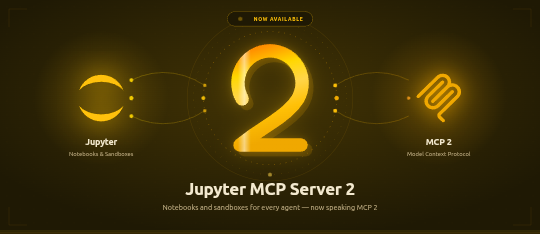
Jupyter MCP Server 2 runs on the MCP Python SDK 2
(mcp>=2,<3), the SDK's first major release. Nothing changes in how you start or
configure the server, in the tools, or for the MCP clients connecting to it — the protocol
is negotiated with each client as before. What changes is the Python environment:
Your jupyter-mcp-server |
mcp SDK |
|---|---|
| >= 2.0.0 | mcp >= 2 |
| < 2.0.0 | mcp < 2 |
Both are pinned in the package, so pip sorts it out; an environment holding another
package that still pins mcp<2 has to stay on jupyter-mcp-server<2 until that package
moves. Writing an extension or a custom token verifier against the SDK? See the
release notes for the renamed
imports.
--provider is now --document-provider (env var PROVIDER → DOCUMENT_PROVIDER).
It only ever chose where the notebook documents live — jupyter for the collaboration
API of a Jupyter Server, datalayer for the Datalayer spacer — while the old name and its
help text suggested it also chose where code runs. Execution is picked separately, with
--sandbox-variant (jupyter-server, datalayer, daytona, e2b, coreweave,
cloudflare, kaggle, google-colab, monty, modal).
Nothing breaks in v1.3.2: --provider is still accepted as an alias, PROVIDER is still
read, and a /connect payload carrying "provider" is still understood. Move to the new
names when convenient — the old ones are deprecated, not removed.
📖 Table of Contents
- Key Features
- MCP Overview
- Getting Started
- Sandbox Variants
- Best Practices
- Contributing
- Resources
🚀 Key Features
- ⚡ Real-time control: Instantly view notebook changes as they happen.
- 🔁 Smart execution: Automatically adjusts when a cell run fails thanks to cell output feedback.
- 🧠 Context-aware: Understands the entire notebook context for more relevant interactions.
- 📊 Multimodal support: Support different output types, including images, plots, and text.
- 📚 Multi-notebook support: Seamlessly switch between multiple notebooks.
- 🎨 JupyterLab integration: Enhanced UI integration like automatic notebook opening.
- 🤝 MCP-compatible: Works with any MCP client, such as Claude Desktop, Cursor, Windsurf, and more.
- 🔍 Observability: Built-in hook system with OpenTelemetry integration for tracing tool calls and kernel executions.
Compatible with any Jupyter deployment (local, JupyterHub, ...) and with Datalayer hosted Notebooks, where the Code Sandboxes come with GPUs and the execution survives a disconnect.
🔧 MCP Overview
🔧 Tools Overview
Every tool, with its parameters, schema and return value, is generated from a live snapshot of the running server and published at jupyter-mcp-server.datalayer.tech/mcp — so it is never out of step with the code, which a table copied into this file would be.
They fall into four groups:
- Server and code sandbox — browse the Jupyter file system, list kernels, connect to a server at runtime, and launch, select and terminate code sandboxes.
- Notebooks — open, create and switch between notebooks, list them, read one, restart its kernel, release it.
- Cells — read, insert, delete, move, reorder and edit cells, surgically or wholesale, and clear their outputs.
- Execution — run a cell or arbitrary code on the active backend, with multimodal output and streaming where the sandbox supports it.
Sandbox tools need the optional jupyter_mcp_sandboxes extension; see
Sandbox Variants.
JupyterLab Integration
Available only when JupyterLab mode is enabled. It is enabled by default.
In JupyterLab mode the server also exposes JupyterLab commands as MCP tools through
jupyter-mcp-tools —
notebook_run-all-cells and notebook_get-selected-cell by default, with more
selectable through allowed_jupyter_mcp_tools. The full list and how to configure it are
in the Additional Tools documentation.
📝 Prompt Overview
The server implements the MCP
prompts feature.
jupyter-cite cites specific cells from a notebook, the way @ does in a coding IDE or
CLI. Input parameters and returned content are in the
Prompts documentation.
🏁 Getting Started
For comprehensive setup instructions—including Streamable HTTP transport, running as a Jupyter Server extension and advanced configuration—check out our documentation. Or, get started quickly with JupyterLab and STDIO transport here below.
1. Set Up Your Environment
pip install jupyterlab jupyter-collaboration jupyter-mcp-tools ipykernel
To confirm your environment is correctly configured:
- Open a notebook in JupyterLab
- Type some content in any cell (code or markdown)
- Observe the tab indicator: you should see an "×" appear next to the notebook name, indicating unsaved changes
- Wait a few seconds—the "×" should automatically change to a "●" without manually saving
This automatic saving behavior confirms that the real-time collaboration features are working properly, which is essential for MCP server integration.
2. Start JupyterLab
# Start JupyterLab on port 8888, allowing access from any IP and setting a token
jupyter lab --port 8888 --IdentityProvider.token MY_TOKEN --ip 0.0.0.0
If you are running notebooks through JupyterHub instead of JupyterLab as above, refer to our JupyterHub setup guide.
3. Configure Your Preferred MCP Client
Next, configure your MCP client to connect to the server. We offer two primary methods—choose the one that best fits your needs:
- 📦 Using
uvx(Recommended for Quick Start): A lightweight and fast method usinguv. Ideal for local development and first-time users. - 🐳 Using
Docker(Recommended for Production): A containerized approach that ensures a consistent and isolated environment, perfect for production or complex setups.
📦 Using uvx (Quick Start)
First, install uv:
pip install uv
uv --version
# should be 0.6.14 or higher
See more details on uv installation.
Then, configure your client:
{
  "mcpServers": {
    "jupyter": {
      "command": "uvx",
      "args": ["jupyter-mcp-server@latest"],
      "env": {
        "JUPYTER_URL": "http://localhost:8888",
        "JUPYTER_TOKEN": "MY_TOKEN",
        "ALLOW_IMG_OUTPUT": "true"
      }
    }
  }
}
🐳 Using Docker (Production)
On macOS and Windows:
{
  "mcpServers": {
    "jupyter": {
      "command": "docker",
      "args": [
        "run", "-i", "--rm",
        "-e", "JUPYTER_URL",
        "-e", "JUPYTER_TOKEN",
        "-e", "ALLOW_IMG_OUTPUT",
        "datalayer/jupyter-mcp-server:latest"
      ],
      "env": {
        "JUPYTER_URL": "http://host.docker.internal:8888",
        "JUPYTER_TOKEN": "MY_TOKEN",
        "ALLOW_IMG_OUTPUT": "true"
      }
    }
  }
}
On Linux:
{
  "mcpServers": {
    "jupyter": {
      "command": "docker",
      "args": [
        "run", "-i", "--rm",
        "-e", "JUPYTER_URL",
        "-e", "JUPYTER_TOKEN",
        "-e", "ALLOW_IMG_OUTPUT",
        "--network=host",
        "datalayer/jupyter-mcp-server:latest"
      ],
      "env": {
        "JUPYTER_URL": "http://localhost:8888",
        "JUPYTER_TOKEN": "MY_TOKEN",
        "ALLOW_IMG_OUTPUT": "true"
      }
    }
  }
}
- Port Configuration: Ensure the
portin your Jupyter URLs matches the one used in thejupyter labcommand. For simplified config, set this inJUPYTER_URL. - Server Separation: Use
JUPYTER_URLwhen both services are on the same server, or set individual variables for advanced deployments. The different URL variables exist because some deployments separate notebook storage (DOCUMENT_URL) from kernel execution (CODE_SANDBOX_URL). - Authentication: In most cases, document and code sandbox services use the same authentication token. Use
JUPYTER_TOKENfor simplified config or setDOCUMENT_TOKENandCODE_SANDBOX_TOKENindividually for different credentials. - Notebook Path: The
DOCUMENT_IDparameter specifies the path to the notebook the MCP client default to connect. It should be relative to the directory where JupyterLab was started. If you omitDOCUMENT_ID, the MCP client can automatically list all available notebooks on the Jupyter server, allowing you to select one interactively via your prompts. - Image Output: Set
ALLOW_IMG_OUTPUTtofalseif your LLM does not support mutimodel understanding.
For detailed instructions on configuring various MCP clients—including Claude Desktop, VS Code, Cursor, Cline, and Windsurf — see MCP Client Configuration.
🧩 Sandbox Variants
By default, code executes through the code-sandboxes jupyter-server variant against
a Jupyter Server (SANDBOX_VARIANT=jupyter-server). Setting SANDBOX_VARIANT to any
other value uses another code-sandboxes
engine via the sandbox's plain kernel client when the selected variant exposes
one, so the same notebook tools can run code on additional backends.
The spelling is not fussy: google_colab, google-colab and GOOGLE-COLAB all name the
same variant. The names below are the canonical ones.
Sandbox features are provided by the optional jupyter_mcp_sandboxes extension.
To expose sandbox lifecycle tools (launch_sandbox, list_sandboxes,
use_sandbox, terminate_sandbox) or run any non-jupyter-server sandbox variant,
install it with pip install jupyter_mcp_sandboxes.
| Engine | SANDBOX_VARIANT |
Extra install | Key variables | Docs |
|---|---|---|---|---|
| Jupyter Server (default) | jupyter-server |
— | JUPYTER_URL, JUPYTER_TOKEN |
Setup |
| JupyterHub | jupyter-server |
— | CODE_SANDBOX_URL, CODE_SANDBOX_TOKEN |
Setup |
| Datalayer | datalayer |
jupyter-mcp-server[datalayer] |
CODE_SANDBOX_URL, CODE_SANDBOX_TOKEN, SANDBOX_ENVIRONMENT |
Setup |
| Kaggle | kaggle |
jupyter-mcp-server[kaggle] |
Kaggle credentials, or CODE_SANDBOX_URL for interactive mode |
Setup |
| Google Colab | google-colab |
jupyter-mcp-server |
CODE_SANDBOX_URL, CODE_SANDBOX_ID, CODE_SANDBOX_PROXY_TOKEN |
Setup |
| Monty | monty |
jupyter-mcp-server[monty] |
— | Setup |
| Modal | modal |
jupyter-mcp-server[modal] |
Modal credentials | Setup |
| Daytona | daytona |
jupyter-mcp-server[daytona] |
DAYTONA_API_KEY, or DAYTONA_JWT_TOKEN + DAYTONA_ORGANIZATION_ID |
Setup |
| E2B | e2b |
jupyter-mcp-server[e2b] |
E2B_API_KEY |
Setup |
| CoreWeave | coreweave |
jupyter-mcp-server[coreweave] |
CWSANDBOX_API_KEY |
Setup |
| Cloudflare | cloudflare |
jupyter-mcp-server[cloudflare] |
CLOUDFLARE_SANDBOX_API_URL, CLOUDFLARE_SANDBOX_API_KEY |
Setup |
Each engine has its own page with the credentials it needs, the accelerator options it accepts and a worked client configuration — start from jupyter-mcp-server.datalayer.tech/code-sandboxes.
🧪 Testing
Run the test suite:
pytest tests/
Required environment variables for tests:
- None for the default local suite.
Optional environment variables:
TEST_MCP_SERVER:true/falsetoggle for standalone MCP server mode tests (defaulttrue).TEST_JUPYTER_SERVER:true/falsetoggle for Jupyter extension mode tests (defaulttrue).DATALAYER_API_KEY: required only for Datalayer cloud smoke/integration tests.DATALAYER_RUN_URL: optional custom Datalayer code sandbox URL for datalayer engine tests.SANDBOX_ENVIRONMENT: optional cloud environment override (for exampleai-agents-env).
✅ Best Practices
- Interact with LLMs that supports multimodal input (like Gemini 2.5 Pro) to fully utilize advanced multimodal understanding capabilities.
- Use a MCP client that supports returning image data and can parse it (like Cursor, Gemini CLI, etc.), as some clients may not support this feature.
- Break down complex task (like the whole data science workflow) into multiple sub-tasks (like data cleaning, feature engineering, model training, model evaluation, etc.) and execute them step-by-step.
- Provide clearly structured prompts and rules (👉 Visit our Prompt Templates to get started)
- Provide as much context as possible (like already installed packages, field explanations for existing datasets, current working directory, detailed task requirements, etc.).
🤝 Contributing
We welcome contributions of all kinds! Here are some examples:
- 🐛 Bug fixes
- 📝 Improvements to existing features
- 🔧 New feature development
- 📚 Documentation improvements and prompt templates
For detailed instructions on how to get started with development and submit your contributions, please see our Contributing Guide.
Our Contributors
📚 Resources
Looking for blog posts, videos, or other materials about Jupyter MCP Server?
👉 Visit the Resources section in our documentation for more!
If this project is helpful to you, please give us a ⭐️
Made with ❤️ by Datalayer

Two peas, one chat
Chat with AI about Jupyter
Opens a chat primed with Jupyter’s README and setup docs from this page, or add it in Cursor to use its tools.
The Cursor button opens Cursor and asks before it adds the server. Fill in any keys it needs in Cursor’s MCP settings.
Peas in a pod
What are the alternatives to Jupyter MCP Server?
How Jupyter MCP Server lines up against its neighbours on the shelf. See every developer tools server.

Jupyter MCP ServerThis pea
Lets an assistant edit and run cells in a live Jupyter notebook and read the results.
- Tools
- 18
- Runs on
- Your computer
- Licence
- BSD
- Stars
- 1.3K

Lets an assistant send requests, read proxy history and use Repeater in Burp Suite.
- Tools
- 27
- Runs on
- Your computer
- Licence
- GPL-3.0
- Stars
- 1.3K

Docs search for coding agents that returns only the part of the page that matters.
- Tools
- 2
- Runs on
- Your computer or hosted
- Licence
- MIT
- Stars
- 1.2K

A terminal, file search and surgical file edits for your assistant.
- Tools
- 25
- Runs on
- Your computer
- Licence
- MIT
- Stars
- 10.1K

IDE-style "find symbol" and "edit symbol" for an agent, backed by language servers.
- Tools
- 3 (REPL)
- Runs on
- Your computer
- Licence
- GPL-3.0
- Stars
- 30.7K

Pulls current, version-specific library docs into the conversation.
- Tools
- 2
- Runs on
- Your computer or hosted
- Licence
- MIT
- Stars
- 63.7K
Something wrong on this page? Tell us.