
Lets an assistant build scenes, edit objects and run tests inside the Unity Editor.
- Needs your setup first
- ★ 2K GitHub stars
- Last commit 11 Oct 2026
What is MCP Unity?
MCP Unity is an open source MCP server and Unity package by CoderGamester that lets AI assistants edit scenes, GameObjects, materials and prefabs, run tests and read the console in the Unity Editor.
MCP Unity, by the developer CoderGamester, is a Unity package with two parts: a WebSocket server that runs inside the Editor, and a small Node.js bridge that your MCP client starts. Through it the model can create and load scenes, add, move and reparent GameObjects, change components and materials, make prefabs, run the Test Runner, recompile scripts and read the console. It is a separate project from the CoplayDev server called MCP for Unity, which is also on this shelf.
The bridge and the Editor talk only on your machine by default, and every connection needs a token that the package generates for each project. Installing Unity packages through the assistant is off until you allow it, because a package can run code in the Editor as it compiles.
- Made by
- CoderGamester and contributors
- Licence
- MIT
- GitHub stars
- 2K
- Last commit
- 11 Oct 2026
- Tools
- 34
- Runs on
- Your computer
- Setup checked
- 27 Oct 2026
- Page updated
- 27 Oct 2026
Our check: It needs something our Linux test machine does not have (an account, a desktop app, a Mac or a running service), so on 27 Oct 2026 we read its tools from the source code instead of running this config.
MCP Shelf take
MCP Unity needs something our Linux test machine does not have (an account, an app or a service), so on 27 Oct 2026 we read its source and counted 34 tools. 7 of the 34 only read; the other 27 can change things. It sits 12th of 14 in its category on our shelf by GitHub stars (2K).
What can MCP Unity read and change?
It can read
- The scene hierarchy, GameObjects, components and materials
- The Unity console and test results
- Project assets, packages and menu items
It can change
- Scenes, GameObjects, components, prefabs and materials in your project
- Play Mode state, compiled scripts and installed packages (packages only if allowed)
- Anything a menu item can do, through execute_menu_item
Safer setup: Keep the project in version control, leave Allow Package Installation off, and keep remote connections off so only your own machine can reach the Editor.
What's in the pod
What tools does MCP Unity have?
We found 34 tools in its source code on 27 Oct 2026. 7 only read. The rest can change things, so keep your app's "ask before each tool call" setting on for them.
How we tested it: Tool list read from the source of MCP Unity 1.5.0 (commit d572dc8). The bridge needs a running Unity Editor, which our sandbox does not have.
Runs commands3 tools · Can start programs or run code.
| Tool | What it is for |
|---|---|
batch_execute | Runs several tool calls in one request, optionally rolling back all of them if one fails. |
execute_menu_item | Runs any Unity Editor menu item by its path, such as GameObject/Create Empty. |
run_tests | Runs Edit Mode or Play Mode tests in the Test Runner and returns the results. |
Changes things24 tools · Can create, edit, send or delete.
| Tool | What it is for |
|---|---|
add_asset_to_scene | Places an asset from the project, such as a prefab, into the scene. |
add_package | Installs a package from the registry, a git URL or a local folder. Disabled until you allow it in the Server Window. |
assign_material | Puts a material on a GameObject's renderer, in a chosen slot. |
create_material | Creates a material with a shader and colour and saves it as an asset. |
create_prefab | Creates a prefab, optionally with a script attached and its fields filled in. |
create_scene | Creates a scene, optionally adding it to Build Settings. |
delete_gameobject | Deletes a GameObject, with or without its children. |
delete_scene | Deletes a scene asset from the project. |
duplicate_gameobject | Copies a GameObject, optionally several times or under a new parent. |
load_scene | Opens a scene, on its own or added to those already open. |
modify_material | Changes a material's colours, numbers or textures. |
move_gameobject | Moves a GameObject, in world or local space, to a position or by an offset. |
recompile_scripts | Recompiles the project's scripts and returns any compiler messages. |
reparent_gameobject | Moves a GameObject under a different parent in the Hierarchy. |
rotate_gameobject | Rotates a GameObject using Euler angles. |
save_scene | Saves the current scene, or saves it under a new path. |
scale_gameobject | Scales a GameObject to a size or by a factor. |
select_gameobject | Selects a GameObject in the Hierarchy by path, name or instance ID. |
send_console_log | Writes a message to the Unity console. |
set_play_mode_status | Enters, exits or pauses Play Mode. |
set_transform | Sets position, rotation and scale in one call. |
unload_scene | Closes one of several open scenes. |
update_component | Adds a component to a GameObject or changes its fields. |
update_gameobject | Changes a GameObject's name, tag, layer or active state, creating it if it does not exist. |
Only reads7 tools · Looks things up and changes nothing.
| Tool | What it is for |
|---|---|
get_console_logs | Reads the Unity console, filtered by type, a page at a time. |
get_gameobject | Returns a GameObject with its children and components, to a chosen depth. |
get_material_info | Shows a material's shader and every property with its current value. |
get_play_mode_status | Tells you whether the Editor is in Play Mode or paused. |
get_scene_info | Reports the active scene and the other scenes that are loaded. |
get_scenes_hierarchy | Lists every GameObject in the scenes that are loaded. |
show_unity_dashboard | Opens the MCP Unity dashboard app inside VS Code 1.109 or newer. |
Grouped and described by us. The README on GitHub lists the inputs each tool takes.
How do I install MCP Unity?
Install steps from the MCP Unity README
The project's own instructions, copied from its README on GitHub on 27 Oct 2026 under its MIT licence. They are the source of truth; the ready-made configs further down are built from them. The rest of the README is in the README tab.
Installation
Installing this MCP Unity Server is a multi-step process:
Step 1: Install Node.js
To run MCP Unity server, you'll need to have Node.js 18 or later installed on your computer:
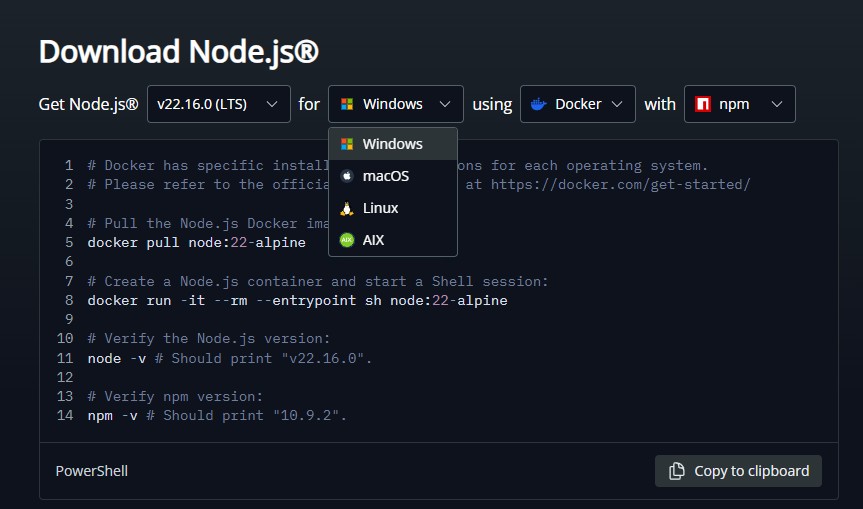
Windows
- Visit the Node.js download page
- Download the Windows Installer (.msi) for the LTS version (recommended)
- Run the installer and follow the installation wizard
- Verify the installation by opening PowerShell and running:
node --version
macOS
- Visit the Node.js download page
- Download the macOS Installer (.pkg) for the LTS version (recommended)
- Run the installer and follow the installation wizard
- Alternatively, if you have Homebrew installed, you can run:
brew install node@18 - Verify the installation by opening Terminal and running:
node --version
Step 2: Install Unity MCP Server package via Unity Package Manager
- Open the Unity Package Manager (Window > Package Manager)
- Click the "+" button in the top-left corner
- Select "Add package from git URL..."
- Enter:
https://github.com/CoderGamester/mcp-unity.git - Click "Add"
Step 3: Configure AI LLM Client
Option 1: Configure using Unity Editor
- Open the Unity Editor
- Navigate to Tools > MCP Unity > Server Window
- Click on the "Configure" button for your AI LLM client as shown in the image below
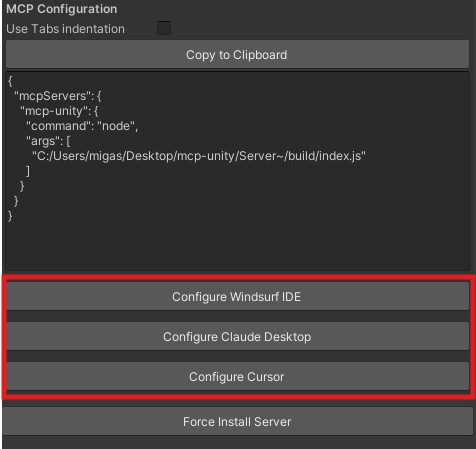
Global vs. Project configuration:
- Configure [Client] — writes to your global user config file (e.g.
~/.claude.json). Uses an absolute path. Applies to all projects on your machine. Best for personal, single-developer setups.- Configure [Client] (Project) — writes to a
.mcp.jsonfile (or equivalent) in the Unity project root. Uses a relative path, so it works across machines. Intended to be committed to git and shared with the team. Best for collaborative projects or when you want the config to travel with the project.If in doubt, prefer the (Project) variant — the relative path is more portable and won't break if you move your project folder.
- Confirm the configuration installation with the given popup
Option 2: Configure Manually
Open the MCP configuration file of your AI client and add the MCP Unity server configuration:
Replace
ABSOLUTE/PATH/TOwith the absolute path to your MCP Unity installation or just copy the text from the Unity Editor MCP Server window (Tools > MCP Unity > Server Window).For configs that live inside the Unity project tree and get committed to git (e.g.
<project>/.vscode/mcp.json,<project>/opencode.json,<project>/.cursor/mcp.json,<project>/.mcp.json,<project>/.codex/config.toml), prefer a project-relative path so the same file works across machines. Toggle "Use relative path" in the Server Window to switch the copy-paste snippet between absolute and project-relative forms. The Configure GitHub Copilot, Configure OpenCode, Configure Cursor (Project), Configure Claude Code (Project), and Configure Codex CLI (Project) buttons already emit relative paths automatically.Project-local buttons (Cursor / Claude Code / Codex CLI) write the MCP server entry into the Unity project directory instead of your global user config, so other (non-Unity) projects don't see MCP connection-failure warnings. For Codex CLI (Project) specifically, you must approve the project trust prompt the first time you run
codexfrom the project root, otherwise Codex ignores<project>/.codex/config.toml.
For JSON-based clients (Cursor, Windsurf, Claude Code, GitHub Copilot, etc.):
{
   "mcpServers": {
       "mcp-unity": {
          "command": "node",
          "args": [
             "ABSOLUTE/PATH/TO/mcp-unity/Server~/build/index.js"
          ]
       }
   }
}
For workspace-scoped VS Code / GitHub Copilot (.vscode/mcp.json), use ${workspaceFolder} so the path is portable across machines:
{
   "mcpServers": {
       "mcp-unity": {
          "command": "node",
          "args": [
             "${workspaceFolder}/Library/PackageCache/com.gamelovers.mcp-unity@<hash>/Server~/build/index.js"
          ]
       }
   }
}
For Codex CLI (~/.codex/config.toml):
[mcp_servers.mcp-unity]
command = "node"
args = ["ABSOLUTE/PATH/TO/mcp-unity/Server~/build/index.js"]
For Cursor — project-local (.cursor/mcp.json in the Unity project root, project-relative path):
{
   "mcpServers": {
       "mcp-unity": {
          "command": "node",
          "args": [
             "Library/PackageCache/com.gamelovers.mcp-unity@<hash>/Server~/build/index.js"
          ]
       }
   }
}
For Claude Code — project-local (.mcp.json in the Unity project root, project-relative path — Claude Code's team-shared MCP config):
{
   "mcpServers": {
       "mcp-unity": {
          "command": "node",
          "args": [
             "Library/PackageCache/com.gamelovers.mcp-unity@<hash>/Server~/build/index.js"
          ]
       }
   }
}
For Codex CLI — project-local (.codex/config.toml in the Unity project root, project-relative path):
[mcp_servers.mcp-unity]
command = "node"
args = ["Library/PackageCache/com.gamelovers.mcp-unity@<hash>/Server~/build/index.js"]
Codex layers this file over the global
~/.codex/config.toml, but only when the project is marked trusted. The first time youcdinto the project and runcodex, approve the trust prompt — otherwise Codex ignores.codex/config.toml.
For OpenCode (opencode.json in the Unity project root):
{
  "$schema": "https://opencode.ai/config.json",
  "mcp": {
    "mcp-unity": {
      "type": "local",
      "enabled": true,
      "command": ["node", "Library/PackageCache/com.gamelovers.mcp-unity@<hash>/Server~/build/index.js"],
      "environment": {}
    }
  }
}
Note: the
@<hash>segment in the UPM package cache path changes when the package is updated. If you update MCP Unity, re-run the Configure button (or update the path manually) so the snippet points at the new cache directory.
What you need first
- Unity 6 or newer
- Node.js 18 or newer
- The MCP Unity package added to your project
Steps
- In Unity, open Window > Package Manager, choose Add package from git URL and enter https://github.com/CoderGamester/mcp-unity.git.
- Open Tools > MCP Unity > Server Window and click Start Server.
- Click the Configure button for your client to write its config for you, or paste the config below with the real path to the package. Packages from git live under Library/PackageCache/com.gamelovers.mcp-unity@<hash> in your project.
Add MCP Unity to your app
Pick your app for a ready-to-paste snippet and where it goes, built from the steps above.
Where it goes: Your terminal, in the project folder
claude mcp add mcp-unity -- node 'ABSOLUTE/PATH/TO/mcp-unity/Server~/build/index.js'In Unity's Tools > MCP Unity > Server Window, the Configure Claude Code (Project) button writes a .mcp.json with a project-relative path that works for everyone who checks out the project.
Where it goes: ~/.cursor/mcp.json, or .cursor/mcp.json in a project
{
  "mcpServers": {
    "mcp-unity": {
      "command": "node",
      "args": [
        "ABSOLUTE/PATH/TO/mcp-unity/Server~/build/index.js"
      ]
    }
  }
}
Where it goes: claude_desktop_config.json (Settings → Developer → Edit Config)
{
  "mcpServers": {
    "mcp-unity": {
      "command": "node",
      "args": [
        "ABSOLUTE/PATH/TO/mcp-unity/Server~/build/index.js"
      ]
    }
  }
}
Where it goes: .vscode/mcp.json in your project
{
  "servers": {
    "mcp-unity": {
      "type": "stdio",
      "command": "node",
      "args": [
        "ABSOLUTE/PATH/TO/mcp-unity/Server~/build/index.js"
      ]
    }
  }
}
Where it goes: ~/.codeium/windsurf/mcp_config.json
{
  "mcpServers": {
    "mcp-unity": {
      "command": "node",
      "args": [
        "ABSOLUTE/PATH/TO/mcp-unity/Server~/build/index.js"
      ]
    }
  }
}
Where it goes: Not supported
Not supported: it talks to the Unity Editor on your own machine, and ChatGPT only connects to remote servers.
The hash in the package path changes when the package updates, so run Configure again after an update. UNITY_PORT changes the port from 8090 if you changed it in the Server Window.
Checked against the project's own install docs on 27 Oct 2026: CoderGamester/mcp-unity README.
New to this? See the setup guides for Claude Code, Cursor, Claude Desktop and ChatGPT.
MCP Unity not working? Common fixes
- The client cannot connect to Unity
- Open Tools > MCP Unity > Server Window and check that the server is started. The client shows up there in green once it connects.
- It stopped working after the package updated
- The package cache path includes a hash that changes on update. Click Configure again or fix the path in your config, then restart the client.
- Requests time out on large scenes
- Raise Request Timeout in the Server Window, or set UNITY_REQUEST_TIMEOUT, and restart the bridge.
- The Node bridge is missing or broken
- Click Force Install Server in the Server Window, or run npm install and npm run build in the package's Server~ folder.
How do I configure MCP Unity?
Names are exactly as the project spells them. Required ones are marked.
| Setting | What it does |
|---|---|
UNITY_PORTEnvironment variable | The port of the WebSocket server inside Unity, if you changed it from 8090 in the Server Window.9001 |
UNITY_HOSTEnvironment variable | The address of the machine running Unity, when the bridge runs elsewhere. Needs Allow Remote Connections in the Server Window.192.168.1.100 |
UNITY_REQUEST_TIMEOUTEnvironment variable | Seconds to wait for Unity to answer a request. The default is 10.30 |
MCP_UNITY_AUTH_TOKENEnvironment variable | The project's bridge token, for a bridge that cannot read Library/McpUnity/bridge-token itself. |
MCP_UNITY_ALLOW_BATCH_MODEEnvironment variable | Set to true before launching Unity in -batchmode to run a headless Editor as the MCP host.true |
MCP Unity FAQ
How do I install MCP Unity?
In Unity, open the Package Manager, choose Add package from git URL and enter https://github.com/CoderGamester/mcp-unity.git. Then open the MCP Unity Server Window from the Tools menu, start the server and click Configure for your AI app.
How do I connect MCP Unity to Claude Code?
Click Configure Claude Code (Project) in the Server Window, which writes .mcp.json in the project root with a relative path. Or point node at Server~/build/index.js inside the package folder under Library/PackageCache.
Which Unity versions does MCP Unity support?
Unity 6 or newer, with Node.js 18 or later to run the bridge server.
Is MCP Unity free?
Yes. It is MIT licensed and runs on your own machine, with no account or service behind it.
Is MCP Unity safe for my project?
It edits your real project, so keep it in version control. Leave Allow Package Installation off and remote connections off so only your own machine can reach the Editor.
Why did MCP Unity stop working after an update?
The package folder name includes a hash that changes on update, so old configs point at a path that no longer exists. Click Configure again to write the new path.
Can MCP Unity run my tests?
Yes. run_tests runs Edit Mode and Play Mode tests, and get_console_logs returns compile errors and logs, so the assistant can fix and recheck in a loop.
MCP Unity or MCP for Unity?
They are separate projects. MCP Unity by CoderGamester uses a Node bridge and needs Unity 6; MCP for Unity by CoplayDev runs a Python server and supports Unity 2021.3 onwards.
MCP Unity README
This is the project's own README from CoderGamester/mcp-unity, written by CoderGamester and contributors, and shared under its MIT licence. We copied it on 27 Oct 2026, so the version on GitHub may be newer.
MCP Unity Editor (Game Engine)
| 🇺🇸English | 🇨🇳简体中文 | 🇯🇵日本語 |
|---|
                              ,/(/.   *(/,
                          */(((((/.   *((((((*.
                     .*((((((((((/.   *((((((((((/.
                 ./((((((((((((((/    *((((((((((((((/,

             ,/(((((((((((((/*.           */(((((((((((((/*.
            ,%%#((/((((((*                    ,/(((((/(#&@@(
            ,%%##%%##((((((/*.             ,/((((/(#&@@@@@@(
            ,%%######%%##((/(((/*.    .*/(((//(%@@@@@@@@@@@(
            ,%%####%#(%%#%%##((/((((((((//#&@@@@@@&@@@@@@@@(
            ,%%####%(    /#%#%%%##(//(#@@@@@@@%,   #@@@@@@@(
            ,%%####%(        *#%###%@@@@@@(        #@@@@@@@(
            ,%%####%(           #%#%@@@@,          #@@@@@@@(
            ,%%##%%%(           #%#%@@@@,          #@@@@@@@(
            ,%%%#*              #%#%@@@@,             *%@@@(
            .,      ,/##*.      #%#%@@@@,     ./&@#*      *`
                ,/#%#####%%#/,  #%#%@@@@, ,/&@@@@@@@@@&\.
                 `*#########%%%%###%@@@@@@@@@@@@@@@@@@&*´
                    `*%%###########%@@@@@@@@@@@@@@&*´
                        `*%%%######%@@@@@@@@@@&*´
                            `*#%%##%@@@@@&*´
                               `*%#%@&*´

     ███╗   ███╗ ██████╗██████╗         ██╗   ██╗███╗   ██╗██╗████████╗██╗   ██╗
     ████╗ ████║██╔════╝██╔══██╗        ██║   ██║████╗  ██║██║╚══██╔══╝╚██╗ ██╔╝
     ██╔████╔██║██║     ██████╔╝        ██║   ██║██╔██╗ ██║██║   ██║    ╚████╔╝
     ██║╚██╔╝██║██║     ██╔═══╝         ██║   ██║██║╚██╗██║██║   ██║     ╚██╔╝
     ██║ ╚═╝ ██║╚██████╗██║             ╚██████╔╝██║ ╚████║██║   ██║      ██║
     ╚═╝     ╚═╝ ╚═════╝╚═╝              ╚═════╝ ╚═╝  ╚═══╝╚═╝   ╚═╝      ╚═╝
MCP Unity is an implementation of the Model Context Protocol for Unity Editor, allowing AI assistants to interact with your Unity projects. This package provides a bridge between Unity and a Node.js server that implements the MCP protocol, enabling AI agents like Cursor, Windsurf, Claude Code, Codex CLI, GitHub Copilot, Google Antigravity, and OpenCode to execute operations within the Unity Editor.
Features
IDE Integration - Package Cache Access
MCP Unity provides automatic integration with VSCode-like IDEs (Visual Studio Code, Cursor, Windsurf, Google Antigravity) by adding the Unity Library/PackedCache folder to your workspace. This feature:
- Improves code intelligence for Unity packages
- Enables better autocompletion and type information for Unity packages
- Helps AI coding assistants understand your project's dependencies
MCP Server Tools
The following tools are available for manipulating and querying Unity scenes and GameObjects via MCP:
execute_menu_item: Executes Unity menu items (functions tagged with the MenuItem attribute)Example prompt: "Execute the menu item 'GameObject/Create Empty' to create a new empty GameObject"
select_gameobject: Selects game objects in the Unity hierarchy by path or instance IDExample prompt: "Select the Main Camera object in my scene"
update_gameobject: Updates a GameObject's core properties (name, tag, layer, active/static state), or creates the GameObject if it does not existExample prompt: "Set the Player object's tag to 'Enemy' and make it inactive"
update_component: Updates component fields on a GameObject or adds it to the GameObject if it does not contain the componentExample prompt: "Add a Rigidbody component to the Player object and set its mass to 5"
add_package: Installs new packages in the Unity Package ManagerExample prompt: "Add the TextMeshPro package to my project"
run_tests: Runs tests using the Unity Test RunnerExample prompt: "Run all the EditMode tests in my project"
send_console_log: Send a console log to UnityExample prompt: "Send a console log to Unity Editor"
add_asset_to_scene: Adds an asset from the AssetDatabase to the Unity sceneExample prompt: "Add the Player prefab from my project to the current scene"
create_prefab: Creates a prefab with optional MonoBehaviour script and serialized field valuesExample prompt: "Create a prefab named 'Player' from the 'PlayerController' script"
create_scene: Creates a new scene and saves it to the specified pathExample prompt: "Create a new scene called 'Level1' in the Scenes folder"
load_scene: Loads a scene by path or name, with optional additive loadingExample prompt: "Load the MainMenu scene"
delete_scene: Deletes a scene by path or name and removes it from Build SettingsExample prompt: "Delete the old TestScene from my project"
get_gameobject: Gets detailed information about a specific GameObject including all componentsExample prompt: "Get the details of the Player GameObject"
get_console_logs: Retrieves logs from the Unity console with pagination supportExample prompt: "Show me the last 20 error logs from the Unity console"
recompile_scripts: Recompiles all scripts in the Unity projectExample prompt: "Recompile scripts in my Unity project"
save_scene: Saves the current active scene, with optional Save As to a new pathExample prompt: "Save the current scene" or "Save the scene as 'Assets/Scenes/Level2.unity'"
get_scene_info: Gets information about the active scene including name, path, dirty state, and all loaded scenesExample prompt: "What scenes are currently loaded in my project?"
unload_scene: Unloads a scene from the hierarchy (does not delete the scene asset)Example prompt: "Unload the UI scene from the hierarchy"
duplicate_gameobject: Duplicates a GameObject in the scene with optional renaming and reparentingExample prompt: "Duplicate the Enemy prefab 5 times and rename them Enemy_1 through Enemy_5"
delete_gameobject: Deletes a GameObject from the sceneExample prompt: "Delete the old Player object from the scene"
reparent_gameobject: Changes the parent of a GameObject in the hierarchyExample prompt: "Move the HealthBar object to be a child of the UI Canvas"
move_gameobject: Moves a GameObject to a new position (local or world space)Example prompt: "Move the Player object to position (10, 0, 5) in world space"
rotate_gameobject: Rotates a GameObject to a new rotation (local or world space, Euler angles or quaternion)Example prompt: "Rotate the Camera 45 degrees on the Y axis"
scale_gameobject: Scales a GameObject to a new local scaleExample prompt: "Scale the Enemy object to twice its size"
set_transform: Sets position, rotation, and scale of a GameObject in a single operationExample prompt: "Set the Cube's position to (0, 5, 0), rotation to (0, 90, 0), and scale to (2, 2, 2)"
create_material: Creates a new material with specified shader and saves it to the projectExample prompt: "Create a red material called 'EnemyMaterial' using the URP Lit shader"
assign_material: Assigns a material to a GameObject's Renderer componentExample prompt: "Assign the 'EnemyMaterial' to the Enemy GameObject"
modify_material: Modifies properties of an existing material (colors, floats, textures)Example prompt: "Change the color of 'EnemyMaterial' to blue and set metallic to 0.8"
get_material_info: Gets detailed information about a material including shader and all propertiesExample prompt: "Show me all the properties of the 'PlayerMaterial'"
batch_execute: Executes multiple tool operations in a single batch request, reducing round-trips and enabling atomic operations with optional rollback on failureExample prompt: "Create 10 empty GameObjects named Enemy_1 through Enemy_10 in a single batch operation"
MCP App tools
show_unity_dashboard: Opens the Unity dashboard MCP App in VS Code (requires VS Code 1.109+)Example prompt: "Open the Unity dashboard app"
get_play_mode_status: Gets Unity play mode status (isPlaying, isPaused)Example prompt: "Is Unity in play mode?"
set_play_mode_status: Controls Unity play mode with actions: 'play' (start or unpause), 'pause' (toggle pause), 'stop' (exit play mode), 'step' (advance one frame)Example prompt: "Start Unity play mode" or "Pause the game" or "Step forward one frame"
MCP Server Resources
unity://menu-items: Retrieves a list of all available menu items in the Unity Editor to facilitateexecute_menu_itemtoolExample prompt: "Show me all available menu items related to GameObject creation"
unity://scenes-hierarchy: Retrieves a list of all game objects in the current Unity scene hierarchyExample prompt: "Show me the current scenes hierarchy structure"
unity://gameobject/{id}: Retrieves detailed information about a specific GameObject by instance ID or object path in the scene hierarchy, including all GameObject components with it's serialized properties and fieldsExample prompt: "Get me detailed information about the Player GameObject"
unity://logs: Retrieves a list of all logs from the Unity consoleExample prompt: "Show me the recent error messages from the Unity console"
unity://packages: Retrieves information about installed and available packages from the Unity Package ManagerExample prompt: "List all the packages currently installed in my Unity project"
unity://assets: Retrieves information about assets in the Unity Asset DatabaseExample prompt: "Find all texture assets in my project"
unity://tests/{testMode}: Retrieves information about tests in the Unity Test RunnerExample prompt: "List all available tests in my Unity project"
ui://unity-dashboard: Unity dashboard MCP App UIExample prompt: "Open the Unity dashboard app"
MCP Server Prompts
Prompts are pre-configured templates that provide guided workflows for common Unity tasks. They help AI assistants understand the proper sequence of operations and available tools for specific scenarios.
unity_dashboard: Opens the Unity dashboard MCP app with contextual information about its featuresUsage: In your AI assistant, use the prompt "unity_dashboard" to get guided access to the Unity dashboard
gameobject_handling_strategy: Provides a structured workflow for working with GameObjects, including which tools and resources to useUsage: In your AI assistant, use the prompt "gameobject_handling_strategy" with a GameObject ID, name, or path to get step-by-step guidance
Requirements
- Unity 6 or later - to install the server
- Node.js 18 or later - to start the server
- npm 9 or later - to debug the server
Note: Project Paths with Spaces
MCP Unity supports project paths containing spaces. However, if you experience connection issues, try moving your project to a path without spaces as a troubleshooting step.
Examples:
- ✅ Recommended:
C:\Users\YourUser\Documents\UnityProjects\MyAwesomeGame- ✅ Supported:
C:\Users\Your User\Documents\Unity Projects\My Awesome Game
Installation
Installing this MCP Unity Server is a multi-step process:
Step 1: Install Node.js
To run MCP Unity server, you'll need to have Node.js 18 or later installed on your computer:
Windows
- Visit the Node.js download page
- Download the Windows Installer (.msi) for the LTS version (recommended)
- Run the installer and follow the installation wizard
- Verify the installation by opening PowerShell and running:
node --version
macOS
- Visit the Node.js download page
- Download the macOS Installer (.pkg) for the LTS version (recommended)
- Run the installer and follow the installation wizard
- Alternatively, if you have Homebrew installed, you can run:
brew install node@18 - Verify the installation by opening Terminal and running:
node --version
Step 2: Install Unity MCP Server package via Unity Package Manager
- Open the Unity Package Manager (Window > Package Manager)
- Click the "+" button in the top-left corner
- Select "Add package from git URL..."
- Enter:
https://github.com/CoderGamester/mcp-unity.git - Click "Add"
Step 3: Configure AI LLM Client
Option 1: Configure using Unity Editor
- Open the Unity Editor
- Navigate to Tools > MCP Unity > Server Window
- Click on the "Configure" button for your AI LLM client as shown in the image below
Global vs. Project configuration:
- Configure [Client] — writes to your global user config file (e.g.
~/.claude.json). Uses an absolute path. Applies to all projects on your machine. Best for personal, single-developer setups.- Configure [Client] (Project) — writes to a
.mcp.jsonfile (or equivalent) in the Unity project root. Uses a relative path, so it works across machines. Intended to be committed to git and shared with the team. Best for collaborative projects or when you want the config to travel with the project.If in doubt, prefer the (Project) variant — the relative path is more portable and won't break if you move your project folder.
- Confirm the configuration installation with the given popup
Option 2: Configure Manually
Open the MCP configuration file of your AI client and add the MCP Unity server configuration:
Replace
ABSOLUTE/PATH/TOwith the absolute path to your MCP Unity installation or just copy the text from the Unity Editor MCP Server window (Tools > MCP Unity > Server Window).For configs that live inside the Unity project tree and get committed to git (e.g.
<project>/.vscode/mcp.json,<project>/opencode.json,<project>/.cursor/mcp.json,<project>/.mcp.json,<project>/.codex/config.toml), prefer a project-relative path so the same file works across machines. Toggle "Use relative path" in the Server Window to switch the copy-paste snippet between absolute and project-relative forms. The Configure GitHub Copilot, Configure OpenCode, Configure Cursor (Project), Configure Claude Code (Project), and Configure Codex CLI (Project) buttons already emit relative paths automatically.Project-local buttons (Cursor / Claude Code / Codex CLI) write the MCP server entry into the Unity project directory instead of your global user config, so other (non-Unity) projects don't see MCP connection-failure warnings. For Codex CLI (Project) specifically, you must approve the project trust prompt the first time you run
codexfrom the project root, otherwise Codex ignores<project>/.codex/config.toml.
For JSON-based clients (Cursor, Windsurf, Claude Code, GitHub Copilot, etc.):
{
   "mcpServers": {
       "mcp-unity": {
          "command": "node",
          "args": [
             "ABSOLUTE/PATH/TO/mcp-unity/Server~/build/index.js"
          ]
       }
   }
}
For workspace-scoped VS Code / GitHub Copilot (.vscode/mcp.json), use ${workspaceFolder} so the path is portable across machines:
{
   "mcpServers": {
       "mcp-unity": {
          "command": "node",
          "args": [
             "${workspaceFolder}/Library/PackageCache/com.gamelovers.mcp-unity@<hash>/Server~/build/index.js"
          ]
       }
   }
}
For Codex CLI (~/.codex/config.toml):
[mcp_servers.mcp-unity]
command = "node"
args = ["ABSOLUTE/PATH/TO/mcp-unity/Server~/build/index.js"]
For Cursor — project-local (.cursor/mcp.json in the Unity project root, project-relative path):
{
   "mcpServers": {
       "mcp-unity": {
          "command": "node",
          "args": [
             "Library/PackageCache/com.gamelovers.mcp-unity@<hash>/Server~/build/index.js"
          ]
       }
   }
}
For Claude Code — project-local (.mcp.json in the Unity project root, project-relative path — Claude Code's team-shared MCP config):
{
   "mcpServers": {
       "mcp-unity": {
          "command": "node",
          "args": [
             "Library/PackageCache/com.gamelovers.mcp-unity@<hash>/Server~/build/index.js"
          ]
       }
   }
}
For Codex CLI — project-local (.codex/config.toml in the Unity project root, project-relative path):
[mcp_servers.mcp-unity]
command = "node"
args = ["Library/PackageCache/com.gamelovers.mcp-unity@<hash>/Server~/build/index.js"]
Codex layers this file over the global
~/.codex/config.toml, but only when the project is marked trusted. The first time youcdinto the project and runcodex, approve the trust prompt — otherwise Codex ignores.codex/config.toml.
For OpenCode (opencode.json in the Unity project root):
{
  "$schema": "https://opencode.ai/config.json",
  "mcp": {
    "mcp-unity": {
      "type": "local",
      "enabled": true,
      "command": ["node", "Library/PackageCache/com.gamelovers.mcp-unity@<hash>/Server~/build/index.js"],
      "environment": {}
    }
  }
}
Note: the
@<hash>segment in the UPM package cache path changes when the package is updated. If you update MCP Unity, re-run the Configure button (or update the path manually) so the snippet points at the new cache directory.
Start Unity Editor MCP Server
- Open the Unity Editor
- Navigate to Tools > MCP Unity > Server Window
- Click "Start Server" to start the WebSocket server
- Open your AI Coding IDE (e.g. Cursor, Windsurf, Claude Code, Codex CLI, GitHub Copilot, Google Antigravity, OpenCode, etc.) and start executing Unity tools
When the AI client connects to the WebSocket server, it will automatically show in the green box in the window
Optional: Set WebSocket Port
By default, the WebSocket server runs on port '8090'. To change it:
- Open the Unity Editor
- Navigate to Tools > MCP Unity > Server Window
- Change the "Connection Port" value to your desired port number
- Unity persists the value in
ProjectSettings/McpUnitySettings.json - Restart the Node.js server
The Node bridge discovers that project settings file from its installed package path, so it does not depend on the MCP client's working directory. To override it for one Node process, set UNITY_PORT, for example: UNITY_PORT=9001 node build/index.js.
Optional: Set Timeout
By default, the timeout between the MCP server and the WebSocket is 10 seconds. To change it:
- Open the Unity Editor
- Navigate to Tools > MCP Unity > Server Window
- Change the "Request Timeout (seconds)" value to your desired timeout seconds
- Unity persists the value in
ProjectSettings/McpUnitySettings.json - Restart the Node.js server
To override it for one Node process, set UNITY_REQUEST_TIMEOUT (in seconds), for example: UNITY_REQUEST_TIMEOUT=30 node build/index.js.
Tip:
The timeout between your AI Coding IDE (e.g., Claude Desktop, Cursor IDE, Windsurf IDE) and the MCP Server depends on the IDE.
Optional: Run a Persistent Headless MCP Host
MCP Unity remains disabled in -batchmode by default so CI and cloud builds do not start a bridge or run npm. To run a long-lived headless Editor as an MCP host, opt in before launching Unity by either enabling Allow Batch Mode Server in the Server Window or setting MCP_UNITY_ALLOW_BATCH_MODE=true:
MCP_UNITY_ALLOW_BATCH_MODE=true Unity -batchmode -nographics -projectPath /path/to/project -logFile /path/to/unity.log
The Unity-side WebSocket server starts normally when opted in, but it never runs npm install or npm run build in batch mode. Ensure the Node bridge is already built and available to the MCP client.
Bridge Configuration Resolution
The Node bridge resolves each connection value in this order: its environment variable (UNITY_PORT, UNITY_HOST, or UNITY_REQUEST_TIMEOUT), MCP_UNITY_SETTINGS_PATH, the ProjectSettings/McpUnitySettings.json file found above the installed package, then a file found above its working directory, and finally the defaults. Generated MCP configurations set MCP_UNITY_SETTINGS_PATH and MCP_UNITY_AUTH_TOKEN_PATH explicitly. The bridge logs the value source and warns before falling back to defaults.
Bridge Security and Package Installation
MCP Unity creates a per-project 256-bit authentication token at Library/McpUnity/bridge-token. Token resolution is strict: MCP_UNITY_AUTH_TOKEN takes precedence, followed by MCP_UNITY_AUTH_TOKEN_PATH, followed by the token beside the discovered Unity project. Explicit missing or malformed values fail without fallback. Generated configurations use the token-file path and never copy the secret into ProjectSettings.
The Unity endpoint requires HTTP Basic credentials with username mcp-unity, and rejects every WebSocket handshake that supplies an Origin header. Direct WebSocket integrations must authenticate and omit Origin. Use the Server Window to copy or regenerate the token; after rotation, restart all MCP client processes.
The add_package tool is disabled by default because Unity packages can execute Editor code when they compile. Enable Allow Package Installation in Tools > MCP Unity > Server Window, or set AllowPackageInstallation to true in ProjectSettings/McpUnitySettings.json, only when package sources and MCP clients are trusted.
Version 1.5.0 intentionally rejects 1.4.x Node bridges. Upgrade both the Unity and Node package components, run the Unity Configure action again if the package-cache path changed, and restart MCP clients.
Optional: Allow Remote MCP Bridge Connections
By default, the WebSocket server binds to 'localhost'. To allow MCP bridge connections from other machines:
- Open the Unity Editor
- Navigate to Tools > MCP Unity > Server Window
- Enable the "Allow Remote Connections" checkbox
- Unity will bind the WebSocket server to '0.0.0.0' (all interfaces)
- Restart the Node.js server to apply the new host configuration
- Set the environment variable UNITY_HOST to your Unity machine's IP address when running the MCP bridge remotely:
UNITY_HOST=192.168.1.100 node server.js
Remote transport remains unencrypted ws://. Authentication prevents unauthorized access but does not hide traffic; restrict remote use to a trusted network, VPN, or SSH tunnel. A remote bridge that cannot read the Unity project token file must receive MCP_UNITY_AUTH_TOKEN through a secure secret mechanism.
Debugging the Server
Building the Node.js Server
The MCP Unity server is built using Node.js . It requires to compile the TypeScript code to JavaScript in the build directory.
In case of issues, you can force install it in by:
- Open the Unity Editor
- Navigate to Tools > MCP Unity > Server Window
- Click on "Force Install Server" button
If you want to build it manually, you can follow these steps:
Open a terminal/PowerShell/Command Prompt
Navigate to the Server directory:
cd ABSOLUTE/PATH/TO/mcp-unity/Server~Install dependencies:
npm installBuild the server:
npm run buildRun the server:
node build/index.js
Debugging with MCP Inspector
Debug the server with @modelcontextprotocol/inspector:
- Powershell
npx @modelcontextprotocol/inspector node Server~/build/index.js
- Command Prompt/Terminal
npx @modelcontextprotocol/inspector node Server~/build/index.js
Don't forget to shutdown the server with Ctrl + C before closing the terminal or debugging it with the MCP Inspector.
Enable Console Logs
- Enable logging on your terminal or into a log.txt file:
- Powershell
$env:LOGGING = "true" $env:LOGGING_FILE = "true"- Command Prompt/Terminal
set LOGGING=true
set LOGGING_FILE=true
Frequently Asked Questions
What is MCP Unity?
MCP Unity is a powerful bridge that connects your Unity Editor environment to AI assistants LLM tools using the Model Context Protocol (MCP).
In essence, MCP Unity:
- Exposes Unity Editor functionalities (like creating objects, modifying components, running tests, etc.) as "tools" and "resources" that an AI can understand and use.
- Runs a WebSocket server inside Unity and a Node.js server (acting as a WebSocket client to Unity) that implements the MCP. This allows AI assistants to send commands to Unity and receive information back.
- Enables you to use natural language prompts with your AI assistant to perform complex tasks within your Unity project, significantly speeding up development workflows.
Why use MCP Unity?
MCP Unity offers several compelling advantages for developers, artists, and project managers:
- Accelerated Development: Automate repetitive tasks, generate boilerplate code, and manage assets using AI prompts. This frees up your time to focus on creative and complex problem-solving.
- Enhanced Productivity: Interact with Unity Editor features without needing to manually click through menus or write scripts for simple operations. Your AI assistant becomes a direct extension of your capabilities within Unity.
- Improved Accessibility: Allows users who are less familiar with the deep intricacies of the Unity Editor or C# scripting to still make meaningful contributions and modifications to a project through AI guidance.
- Seamless Integration: Designed to work with various AI assistants and IDEs that support MCP, providing a consistent way to leverage AI across your development toolkit.
- Extensibility: The protocol and the toolset can be expanded. You can define new tools and resources to expose more of your project-specific or Unity's functionality to AI.
- Collaborative Potential: Facilitates a new way of collaborating where AI can assist in tasks traditionally done by team members, or help in onboarding new developers by guiding them through project structures and operations.
How does MCP Unity compare with the upcoming Unity 6.2 AI features?
Unity 6.2 is set to introduce new built-in AI tools, including the previous Unity Muse (for generative AI capabilities like texture and animation generation) and Unity Sentis (for running neural networks in Unity runtime). As Unity 6.2 is not yet fully released, this comparison is based on publicly available information and anticipated functionalities:
Focus:
- MCP Unity: Primarily focuses on Editor automation and interaction. It allows external AI (like LLM-based coding assistants) to control and query the Unity Editor itself to manipulate scenes, assets, and project settings. It's about augmenting the developer's workflow within the Editor.
- Unity 6.2 AI:
- Aims at in-Editor content creation (generating textures, sprites, animations, behaviors, scripts) and AI-powered assistance for common tasks, directly integrated into the Unity Editor interface.
- A fine-tuned model to ask any question about Unity's documentation and API structure, with customized examples more accurate to Unity's environment.
- Adds the functionality to run AI model inference, allowing developers to deploy and run pre-trained neural networks within your game or application for features like NPC behavior, image recognition, etc.
Use Cases:
- MCP Unity: "Create a new 3D object, name it 'Player', add a Rigidbody, and set its mass to 10." "Run all Play Mode tests." "Ask to fix the error on the console log." "Execute the custom menu item 'Prepare build for iOS' and fix any errors that may occur."
- Unity 6.2 AI: "Generate a sci-fi texture for this material." "Update all trees position in the scene to be placed inside of terrain zones tagged with 'forest'." "Create a walking animation for this character." "Generate 2D sprites to complete the character." "Ask details about the error on the console log."
Complementary, Not Mutually Exclusive: MCP Unity and Unity's native AI tools can be seen as complementary. You might use MCP Unity with your AI coding assistant to set up a scene or batch-modify assets, and then use Unity AI tools to generate a specific texture, or to create animations, or 2D sprites for one of those assets. MCP Unity provides a flexible, protocol-based way to interact with the Editor, which can be powerful for developers who want to integrate with a broader range of external AI services or build custom automation workflows.
What MCP hosts and IDEs currently support MCP Unity?
MCP Unity is designed to work with any AI assistant or development environment that can act as an MCP client. The ecosystem is growing, but current known integrations or compatible platforms include:
- Cursor
- Windsurf
- Claude Desktop
- Claude Code
- Codex CLI
- GitHub Copilot
- Google Antigravity
- OpenCode
Can I extend MCP Unity with custom tools for my project?
Yes, absolutely! One of the significant benefits of the MCP Unity architecture is its extensibility.
- In Unity (C#): You can create new C# classes that inherit from
McpToolBase(or a similar base for resources) to expose custom Unity Editor functionality. These tools would then be registered inMcpUnityServer.cs. For example, you could write a tool to automate a specific asset import pipeline unique to your project. - In Node.js Server (TypeScript): You would then define the corresponding TypeScript tool handler in the
Server/src/tools/directory, including its Zod schema for inputs/outputs, and register it inServer/src/index.ts. This Node.js part will forward the request to your new C# tool in Unity.
This allows you to tailor the AI's capabilities to the specific needs and workflows of your game or application.
Is MCP Unity free to use?
Yes, MCP Unity is an open-source project distributed under the MIT License. You are free to use, modify, and distribute it according to the license terms.
Why am I unable to connect to MCP Unity?
- Ensure the WebSocket server is running (check the Server Window in Unity)
- Send a console log message from MCP client to force a reconnection between MCP client and Unity server
- Change the port number in the Unity Editor MCP Server window. (Tools > MCP Unity > Server Window)
Why won't the MCP Unity server start?
- Check the Unity Console for error messages
- Ensure Node.js is properly installed and accessible in your PATH
- Verify that all dependencies are installed in the Server directory
Why do I get a connection failed error when running Play Mode tests?
The run_tests tool returns the following response:
Error:
Connection failed: Unknown error
This error occurs because the bridge connection is lost when the domain reloads upon switching to Play Mode. The workaround is to turn off Reload Domain in Edit > Project Settings > Editor > "Enter Play Mode Settings".
Why do some clients fail with KeyError: 'position' during tool initialization?
Some MCP clients may fail while parsing tool schemas when they contain local JSON pointer references such as #/properties/position.
MCP Unity avoids this by registering transform tool inputs (set_transform, move_gameobject, rotate_gameobject, scale_gameobject) with fresh nested vector schemas per field, so the generated schema does not rely on local #/properties/... references.
If you still see this error:
- update your MCP client to the latest version,
- rebuild the Node server (
cd Server~ && npm run build), - confirm your package version includes this compatibility fix.
Troubleshooting: WSL2 (Windows 11) networking
When running the MCP (Node.js) server inside WSL2 while Unity runs on Windows 11, connecting to ws://localhost:8090/McpUnity may fail with ECONNREFUSED.
Cause: WSL2 and Windows have separate network namespaces — localhost inside WSL2 does not point to the Windows host. By default, Unity listens on localhost:8090.
Solution 1 — Enable WSL2 Mirrored mode networking (preferred)
- Windows 11: Settings → System → For developers → WSL → Enable “Mirrored mode networking”.
- Or via
.wslconfig(then runwsl --shutdownand reopen WSL):
[wsl2]
networkingMode=mirrored
After enabling, localhost is shared between Windows and WSL2, so the default config (localhost:8090) works.
Solution 2 — Point the Node client to the Windows host
Set in your WSL shell before starting the MCP client:
# Use the Windows host IP detected from resolv.conf
export UNITY_HOST=$(grep -m1 nameserver /etc/resolv.conf | awk '{print $2}')
With this, Server~/src/unity/mcpUnity.ts will connect to ws://$UNITY_HOST:8090/McpUnity instead of localhost (it reads UNITY_HOST, and may also honor a Host in ProjectSettings/McpUnitySettings.json if present).
Solution 3 — Allow remote connections from Unity
- Unity: Tools → MCP Unity → Server Window → enable “Allow Remote Connections” (Unity binds to
0.0.0.0). - Ensure Windows Firewall allows inbound TCP on your configured port (default 8090).
- From WSL2, connect to the Windows host IP (see Solution 2) or to
localhostif mirrored mode is enabled.
Note: Default port is
8090. You can change it in the Unity Server Window (Tools → MCP Unity → Server Window). The value maps toMcpUnitySettingsand is persisted inProjectSettings/McpUnitySettings.json.
Validate connectivity
npm i -g wscat
# After enabling mirrored networking
wscat -c ws://localhost:8090/McpUnity
# Or using the Windows host IP
wscat -c ws://$UNITY_HOST:8090/McpUnity
Running Tests
C# Tests (Unity)
Run tests using Unity's Test Runner:
- Open Unity Editor
- Navigate to Window > General > Test Runner
- Select "EditMode" tab
- Click "Run All" to execute all tests
TypeScript Tests (Server)
Run tests using Jest:
cd Server~
npm test
To run tests in watch mode:
npm run test:watch
Support & Feedback
If you have any questions or need support, please open an issue on this repository or alternative you can reach out on:
- Linkedin:
- Discord: gamester7178
- Email: game.gamester@gmail.com
Contributing
Contributions are welcome! Please feel free to submit a Pull Request or open an Issue with your request.
Commit your changes following the Conventional Commits format.
License
This project is under MIT License
Acknowledgements
Two peas, one chat
Chat with AI about MCP Unity
Opens a chat primed with MCP Unity’s README and setup docs from this page, or add it in Cursor to use its tools.
The Cursor button opens Cursor and asks before it adds the server. Fill in any keys it needs in Cursor’s MCP settings.
Peas in a pod
What are the alternatives to MCP Unity?
How MCP Unity lines up against its neighbours on the shelf. See every design, 3d and games server.

MCP UnityThis pea
Lets an assistant build scenes, edit objects and run tests inside the Unity Editor.
- Tools
- 34
- Runs on
- Your computer
- Licence
- MIT
- Stars
- 2K

Lets an assistant draw and edit a live draw.io diagram, shape by shape.
- Tools
- 30
- Runs on
- Your computer
- Licence
- MIT
- Stars
- 1.5K

Prompt-driven modelling in a running copy of Blender.
- Tools
- 9
- Runs on
- Your computer
- Licence
- MIT
- Stars
- 32.4K

Feeds Figma layout and styling to coding agents so the UI matches the design.
- Tools
- 2
- Runs on
- Your computer
- Licence
- MIT
- Stars
- 16.1K

Read and edit Figma documents from an agent, through a Figma plugin.
- Tools
- 40
- Runs on
- Your computer
- Licence
- MIT
- Stars
- 7.1K

Launch, run and debug Godot projects, and read the output.
- Tools
- 14
- Runs on
- Your computer
- Licence
- MIT
- Stars
- 6.4K
Something wrong on this page? Tell us.